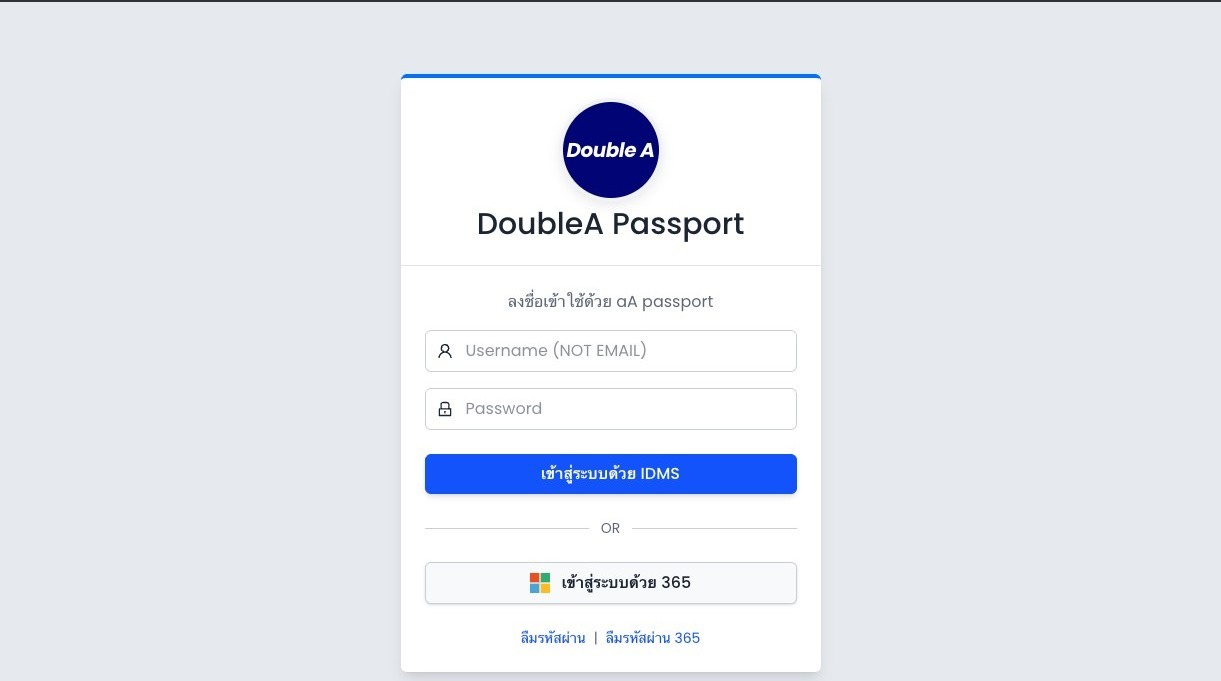
When you encounter the DoubleA Passport login screen
Open the DoubleA Passport page and confirm you are on the normal login screen before starting the MFA flow.
Fill in Username and Password
Enter your Username in the Username field and your Password in the Password field. The guide explicitly uses Username, not email.
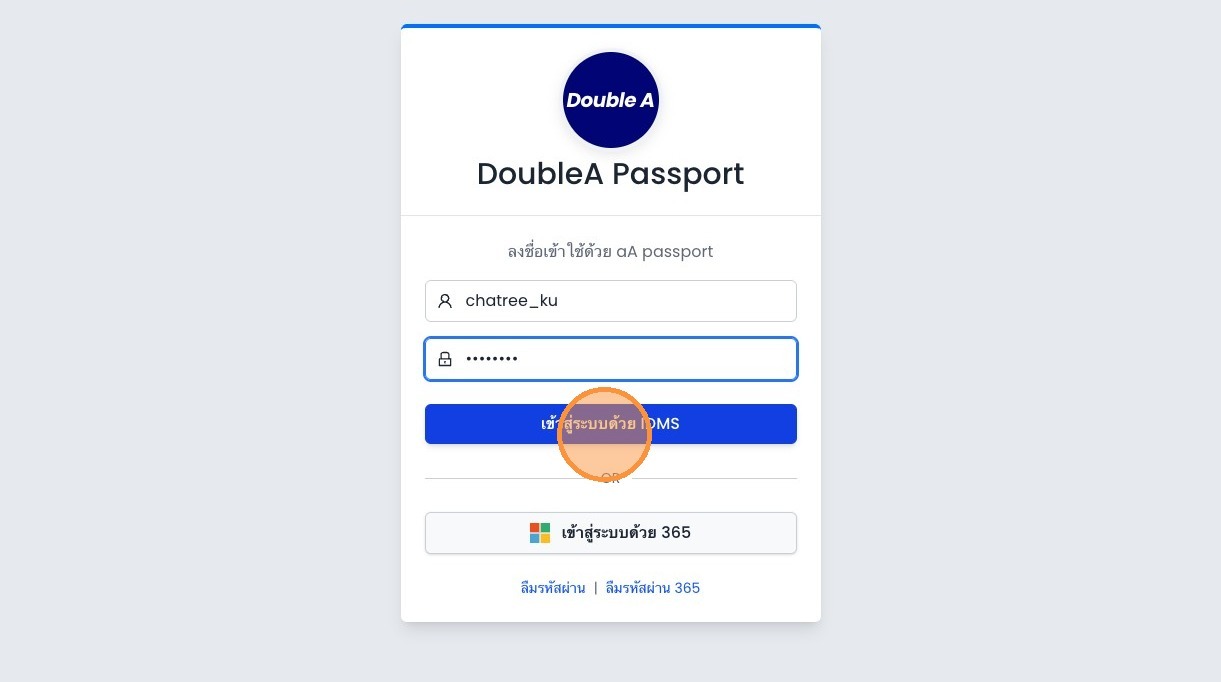
Click “เข้าสู่ระบบด้วย IDMS”
After entering your credentials, continue with the IDMS sign-in button.
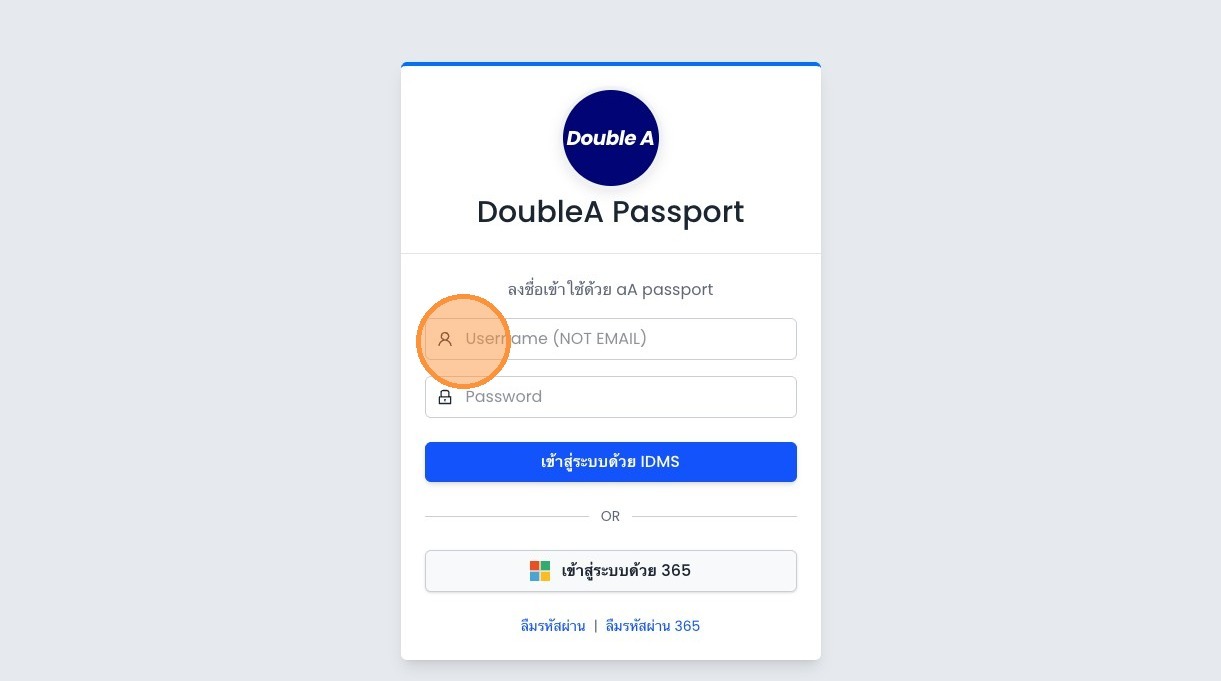
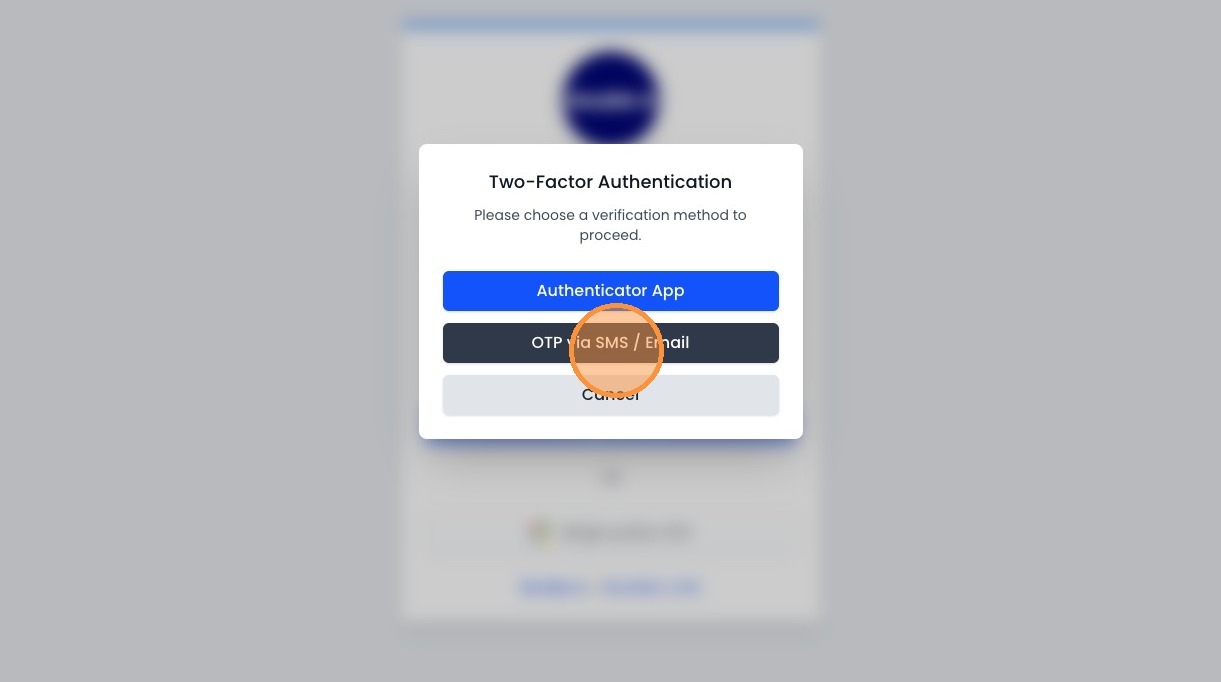
Choose your MFA method
You can continue with either Authenticator App or OTP via SMS / Email.
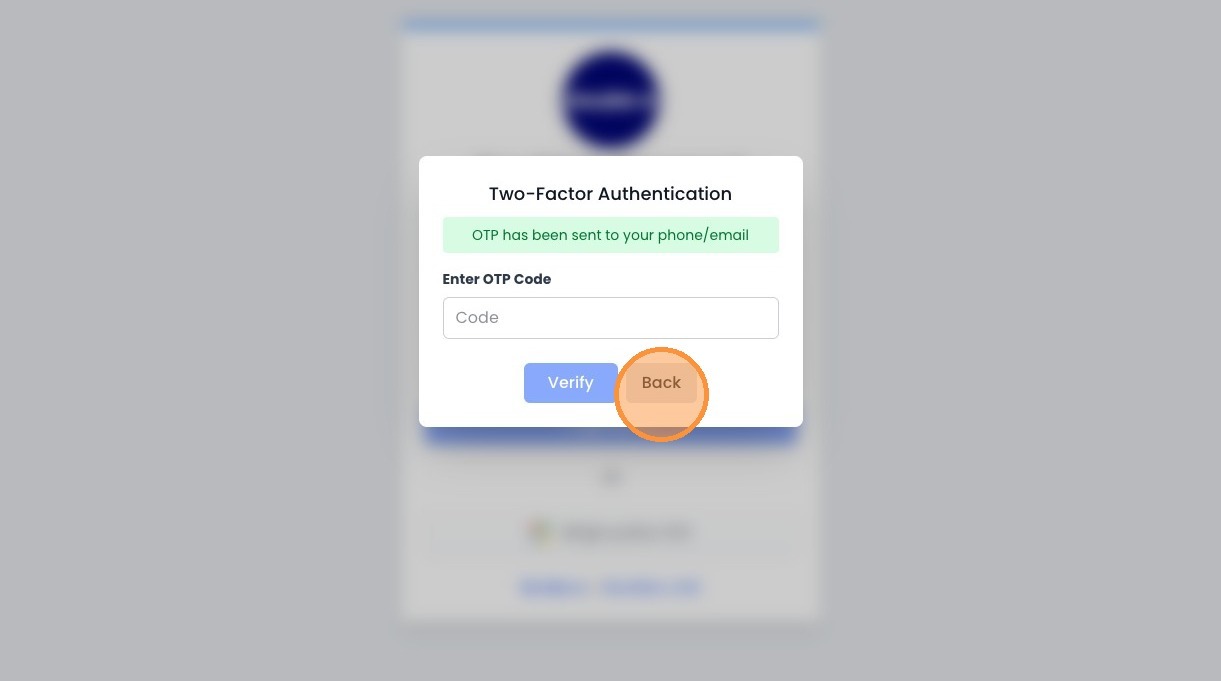
If you choose OTP via SMS / Email
The OTP pin will be sent to both your mailbox and your phone SMS. Read the OTP and enter it on the verification screen.
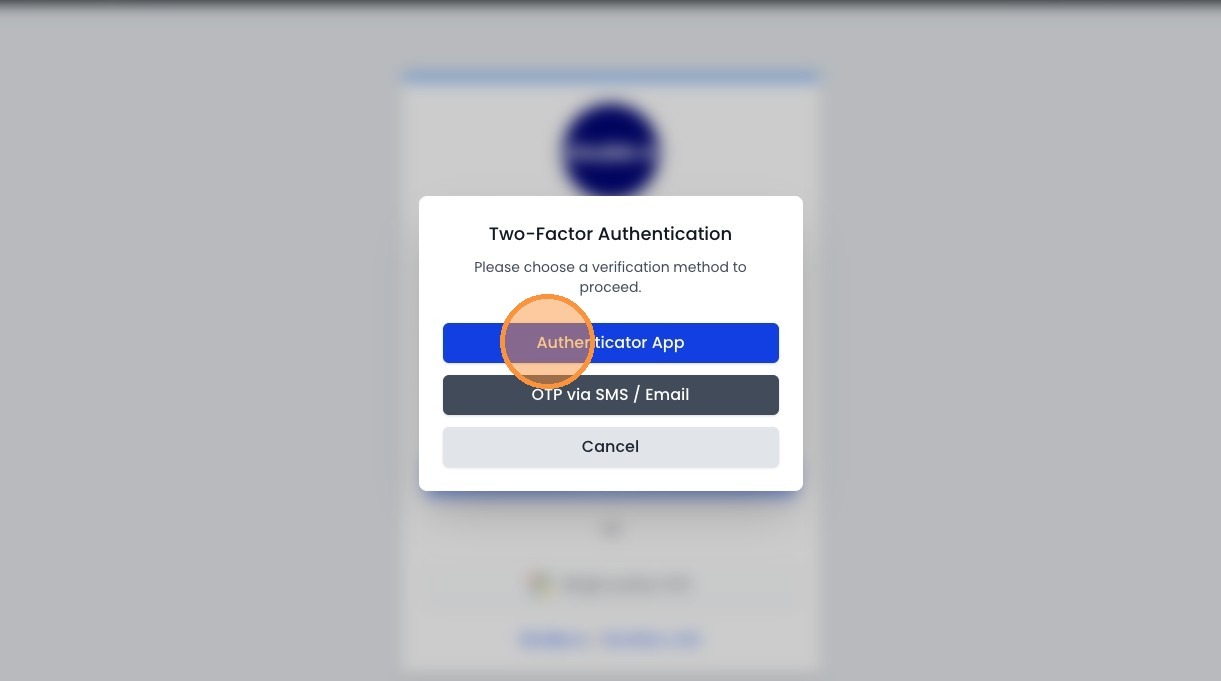
If you choose Authenticator App
Select the Authenticator App option to set up MFA with an authenticator application.
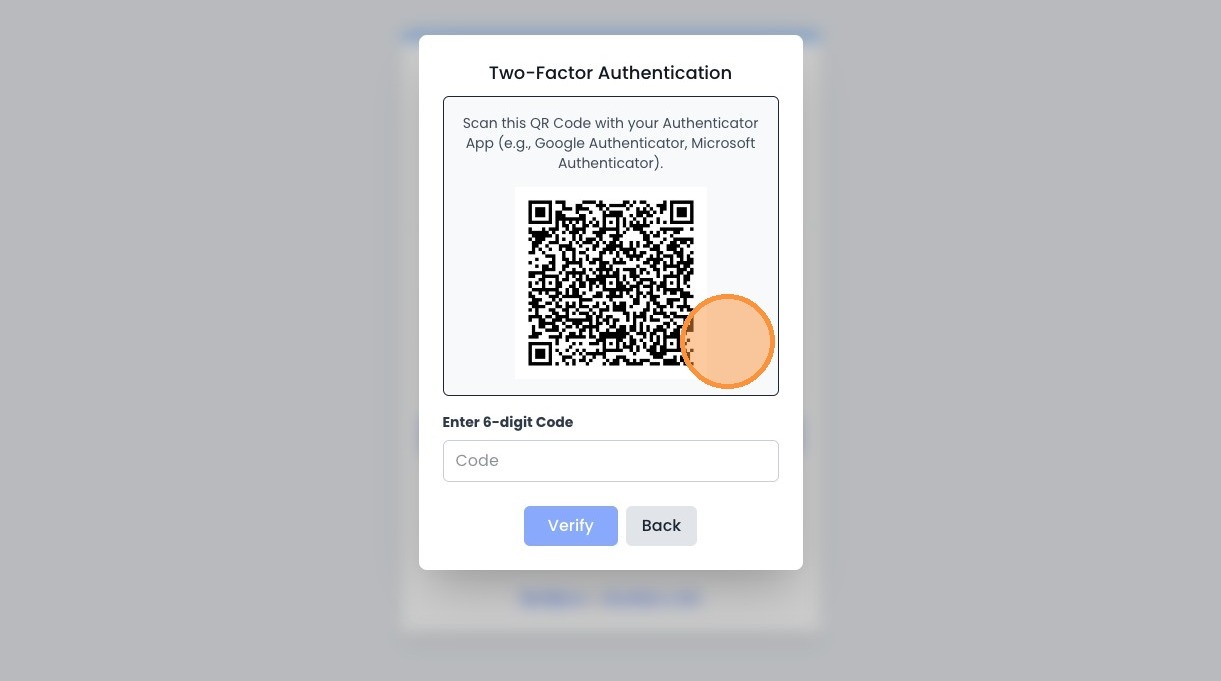
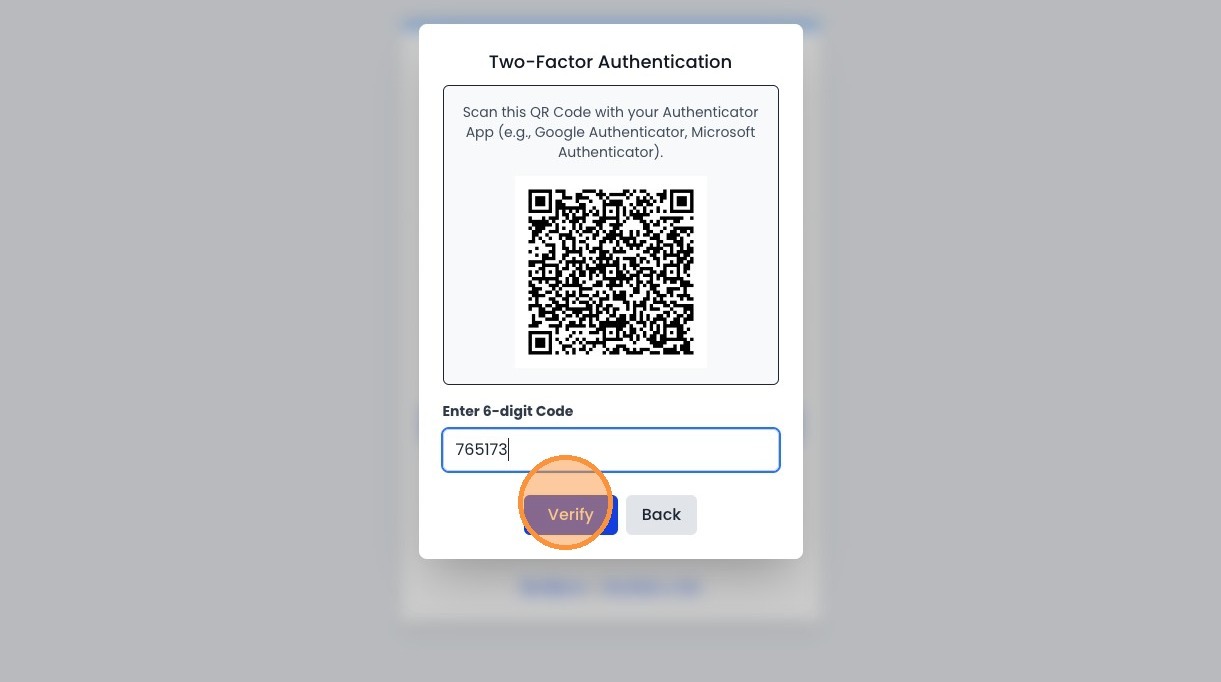
Wait for the QR code popup
The system will show a QR code and tell you to scan it with Google Authenticator or Microsoft Authenticator.
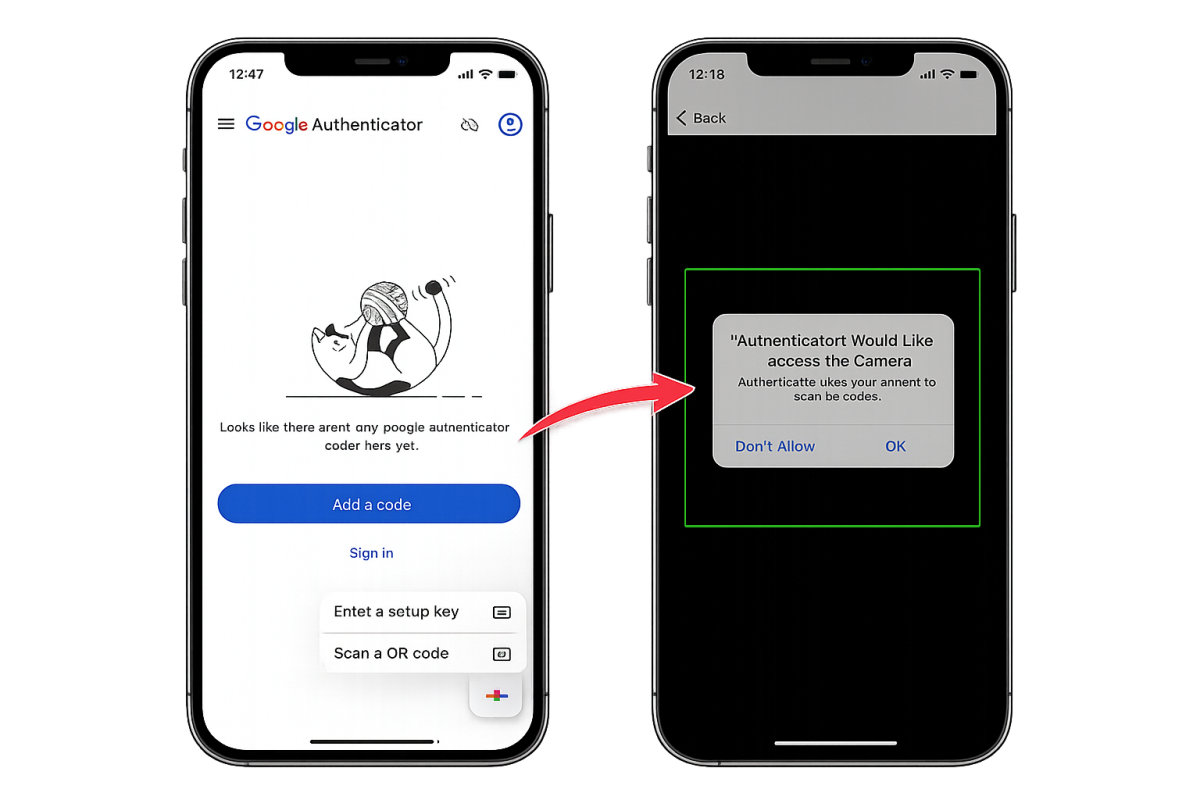
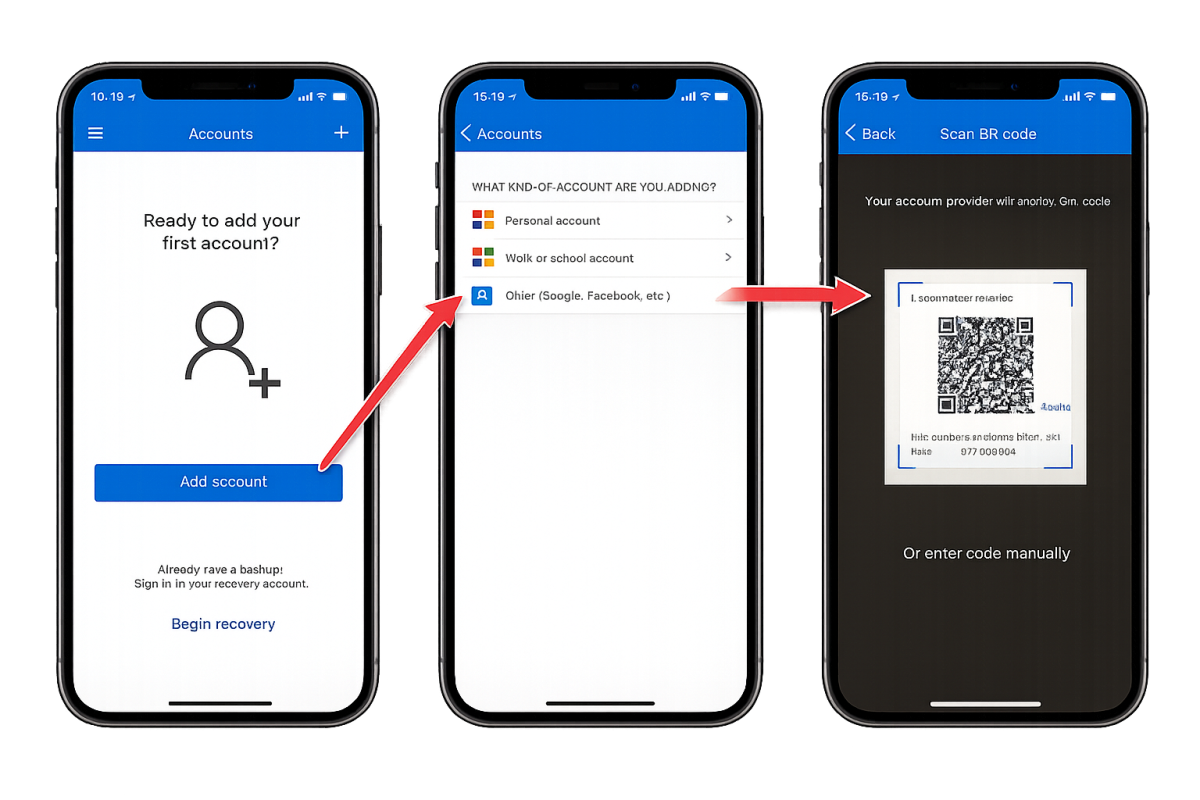
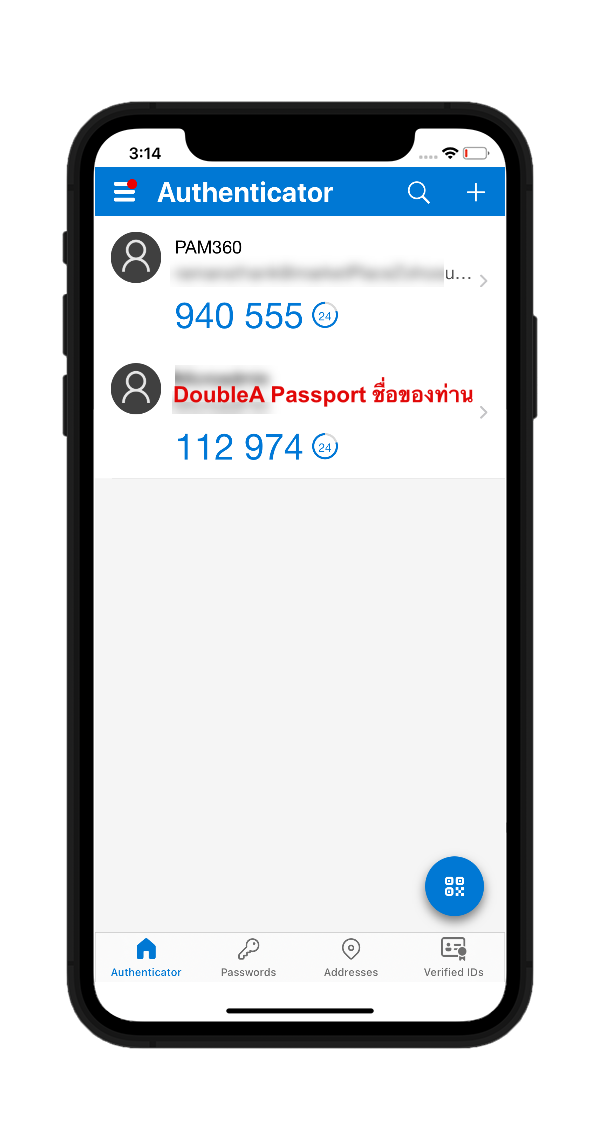
Scan the QR code in your authenticator app and confirm the TOTP code appears
Open your authenticator app, tap Add account, the plus button, or Scan QR Code, then scan the QR code from the previous step. After the account is added, confirm that DoubleA Passport appears in the app and that a 6-digit TOTP code is visible and refreshing automatically.
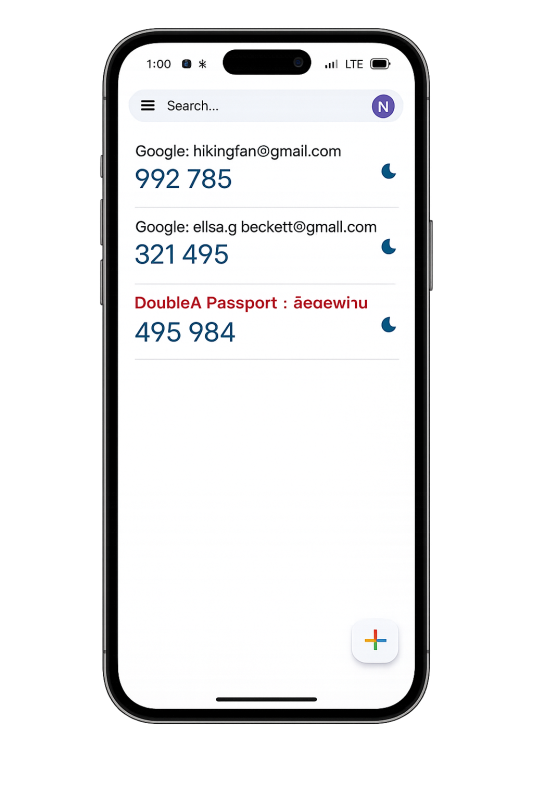
Enter the 6-digit code from the authenticator app
Copy the current 6-digit TOTP from the authenticator app and enter it into the Enter 6-digit Code field.
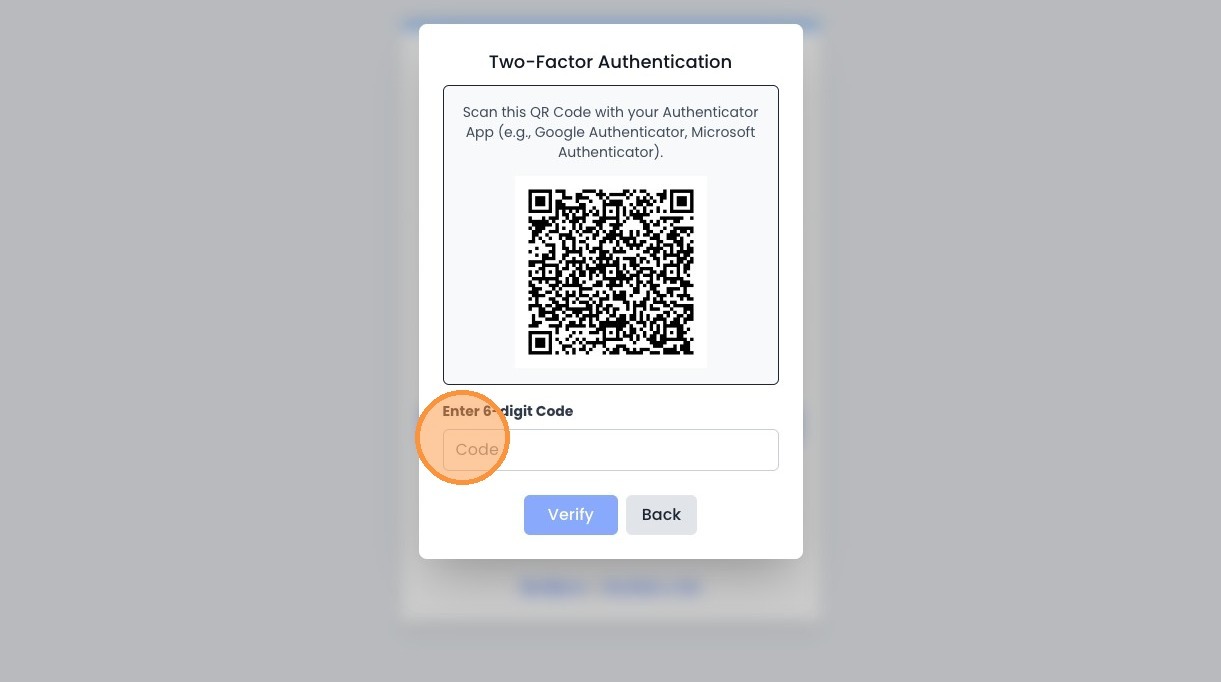
Click Verify to finish
After entering the code, click Verify to complete MFA verification and finish the login flow.